
Leave a Review


Think about it for a moment: you installed an app. While opening the app, it asked for several permissions, and you quickly tapped "Allow" on all of them. After that, you continued using the app, but never noticed what those permissions actually allow the app to do.
This happens to many of us. Whether installing a new app, using a phone cleaner app, running a screen recorder, or granting extra access for a specific feature, we often fail to realize the true importance of these permissions.
In Android, besides regular permissions, there are certain special access permissions whose functions are not well known to many people.
Today, we will discuss 3 important Android permissions and special access settings that, once understood, will make it easier to control your phone's security and privacy.
Let us clarify one thing from the beginning: just because an app has a permission enabled does not mean it is stealing all your data. The risk depends on the app's purpose, the type of permission, and how it is being used.
Regular users often overlook Accessibility. Yet, it is an essential feature of Android.
Accessibility Services were primarily created to assist users with visual impairments or other special needs in using their phones. Screen readers, voice control, and similar assistive features are examples of this.
However, when you grant an app permission to use Accessibility Services, depending on its defined capabilities, the app can read on-screen content or perform actions in the user interface on your behalf.
This is where caution is required.
Suppose you install an unfamiliar app that claims to speed up your phone with a single click.
If that app unnecessarily asks you to enable Accessibility Access, stop for a moment.
In particular, if there is no clear connection between the app's function and the requested permission, you should verify it before granting access.
For trusted accessibility apps, this access may be necessary. But asking why a basic wallpaper app or an unnecessary utility tool needs such access is entirely reasonable.
Follow these steps on your Android phone:
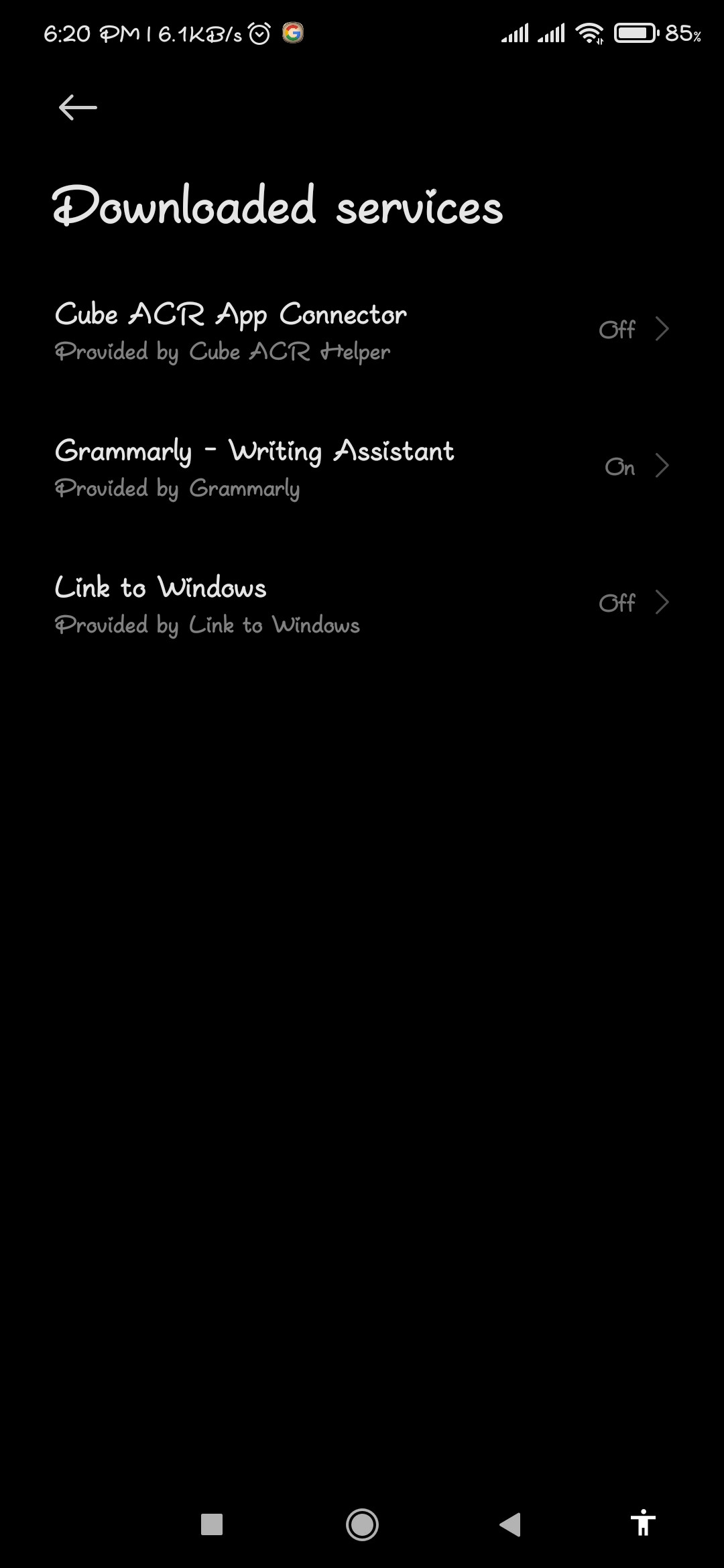
Menu names may vary depending on your phone's brand and Android version.
Google also warns that through Accessibility Access, an app can read on-screen content and interact with apps on the user's behalf. Therefore, you should be cautious before granting this access to unknown apps.
Now let us look at an access setting that many might confuse with standard Notification Permission.
However, the two are not the same.
Notification Permission generally allows an app to display notifications on your phone.
On the other hand, Notification Access is a special privilege that allows an authorized app to see notifications from other apps and take specific actions regarding them.
This feature may be necessary for smartwatches, notification managers, and certain legitimate automation tools.
However, granting this access to the wrong app can pose serious privacy risks.
Your phone's notifications may contain:
Not every app can see all data. What information can be accessed depends on Android limitations, notification types, and the app's permissions.
Still, this should be taken seriously, as private details are often visible in notifications even when the phone is locked.
Notification access in the Settings search bar.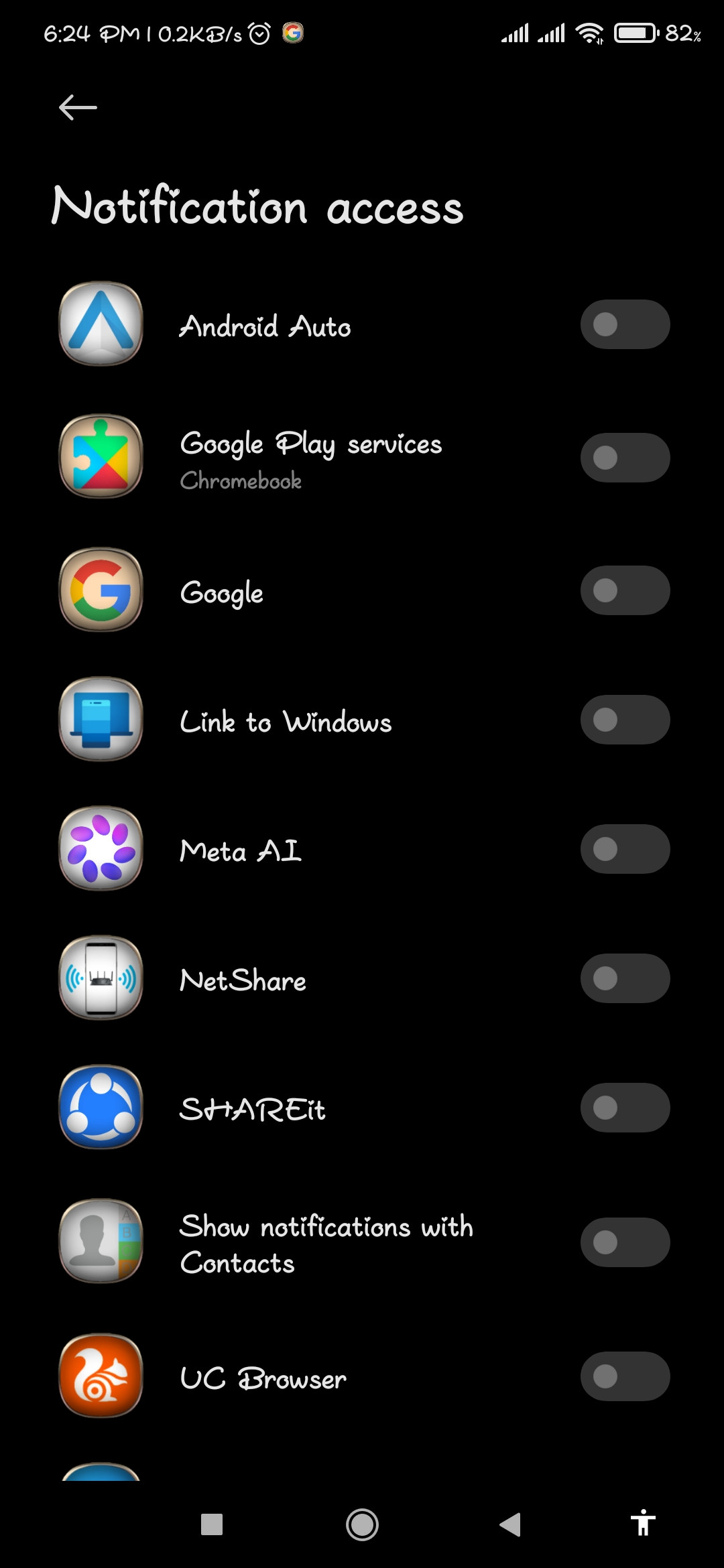
On some phones, this setting may be located under Special app access or Notifications.
Keep in mind that menu locations differ across various Android devices.
Have you ever used an app that shows a floating button on your screen?
For example:
For features like these, Display over other apps or Appear on top access may be required.
This allows an app to display a window or overlay on top of other running apps.
While convenient, if misused, this access can create risks of misleading the user.
Suppose you launch an unfamiliar app. It displays a window over another app that looks like a genuine button or system alert.
Without realizing it, you tap on it.
This type of technique is associated with overlay-based deception, sometimes linked to tapjacking risks.
However, keep in mind that having overlay access does not automatically make an app dangerous. Many legitimate apps require it for their core functionality.
Display over other apps, Appear on top, or a similar option.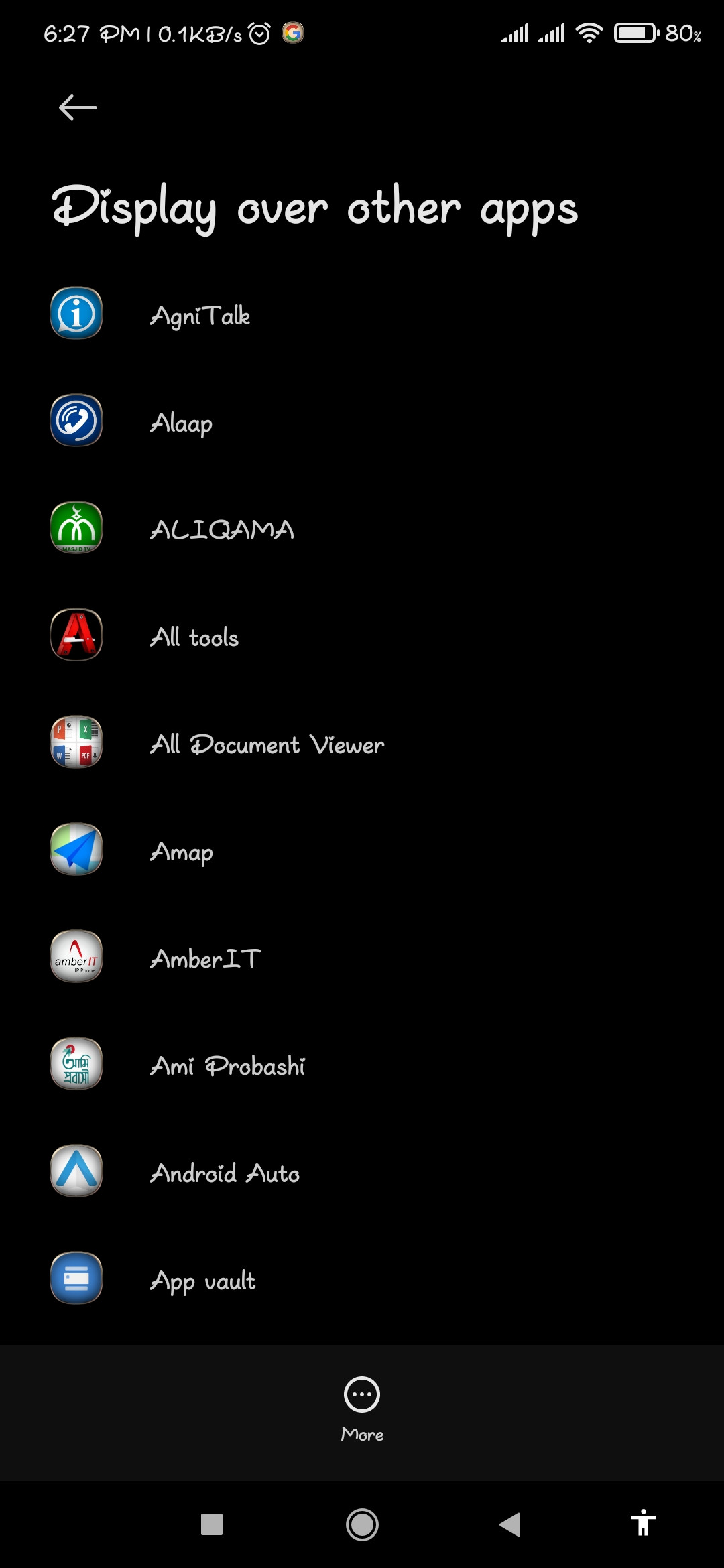
According to Google's Android Developer Documentation, this access allows an app to display an overlay window over other apps. For this reason, especially with unfamiliar apps, the necessity of granting this permission should always be verified.
By now, you understand that not all permissions are the same.
Some permissions are granted for using the camera, microphone, or location. On the other hand, special permissions like Accessibility, Notification Access, and Display over other apps can grant much broader control in specific scenarios.
Therefore, instead of deciding based solely on the app's name, evaluate how the permission relates to its actual function.
A simple rule to remember:
Grant only the access necessary for the app to function. Do not keep unnecessary permissions enabled.
Checking just these three permissions does not cover all privacy aspects.
If you wish, you can use Android's Privacy Dashboard to monitor the recent usage of key permissions.
This feature is generally available on Android 12 and later versions, though menus and features may vary by phone manufacturer.
How to Check:
According to Google's documentation, the Privacy Dashboard typically displays permission activity from the past 24 hours on Android 12, and from the past 7 days on Android 13 and newer versions.
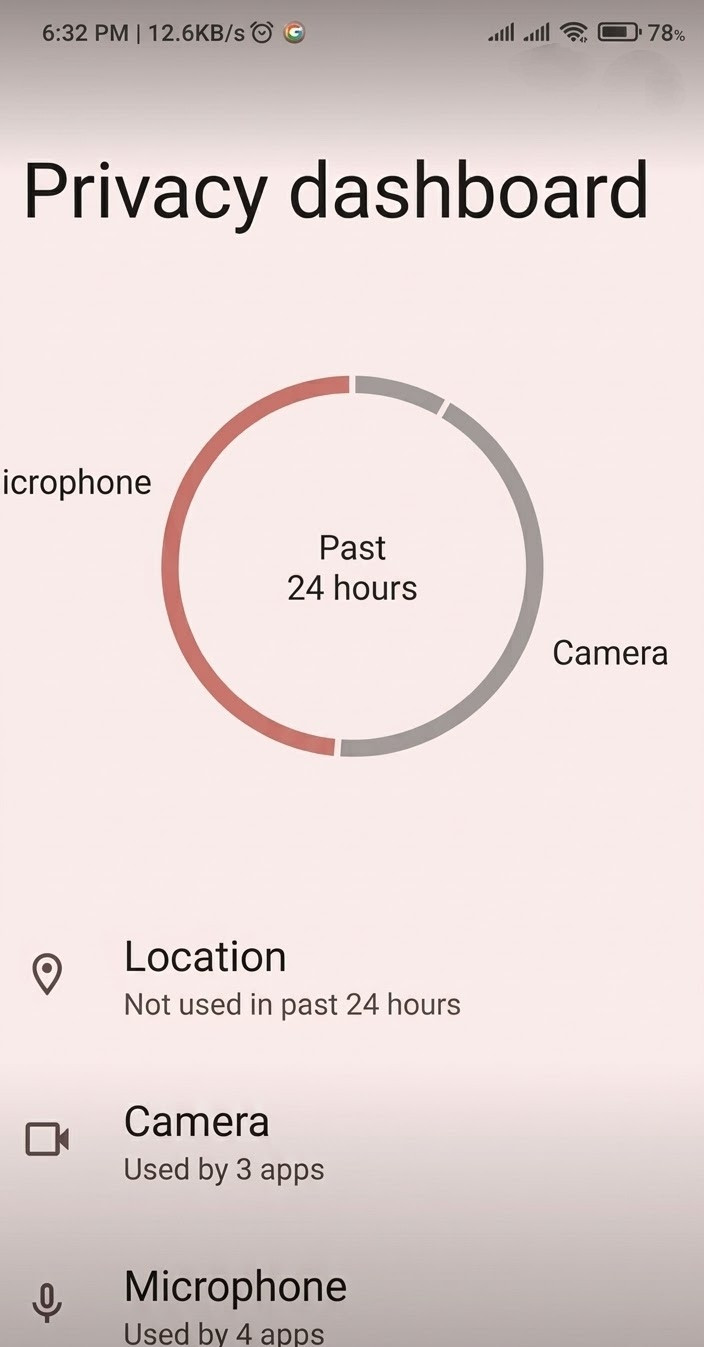
If an app's usage seems unusual, you can open its permission settings and adjust them accordingly.
Phone security is not just about using a strong password. What kind of access you grant to your apps is equally important.
At the same time, you do not need to suspect every app. Many apps require special permissions to function properly.
The key takeaway is to understand permissions before granting them and review them periodically as needed.
Check Accessibility, Notification Access, and Display over other apps on your phone today.
A Question for You: Which of these three access settings was already turned on for an unfamiliar app on your phone?
Share your experience in the comments. It may help other Android users as well.
Thank you for staying with AroraShop.